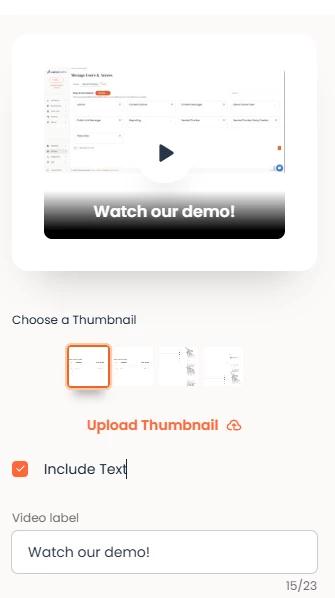

Here are three link options when it comes to creating a Demoboard link.
We recommend using the image link. This option allows you to customize the image associated with the link.
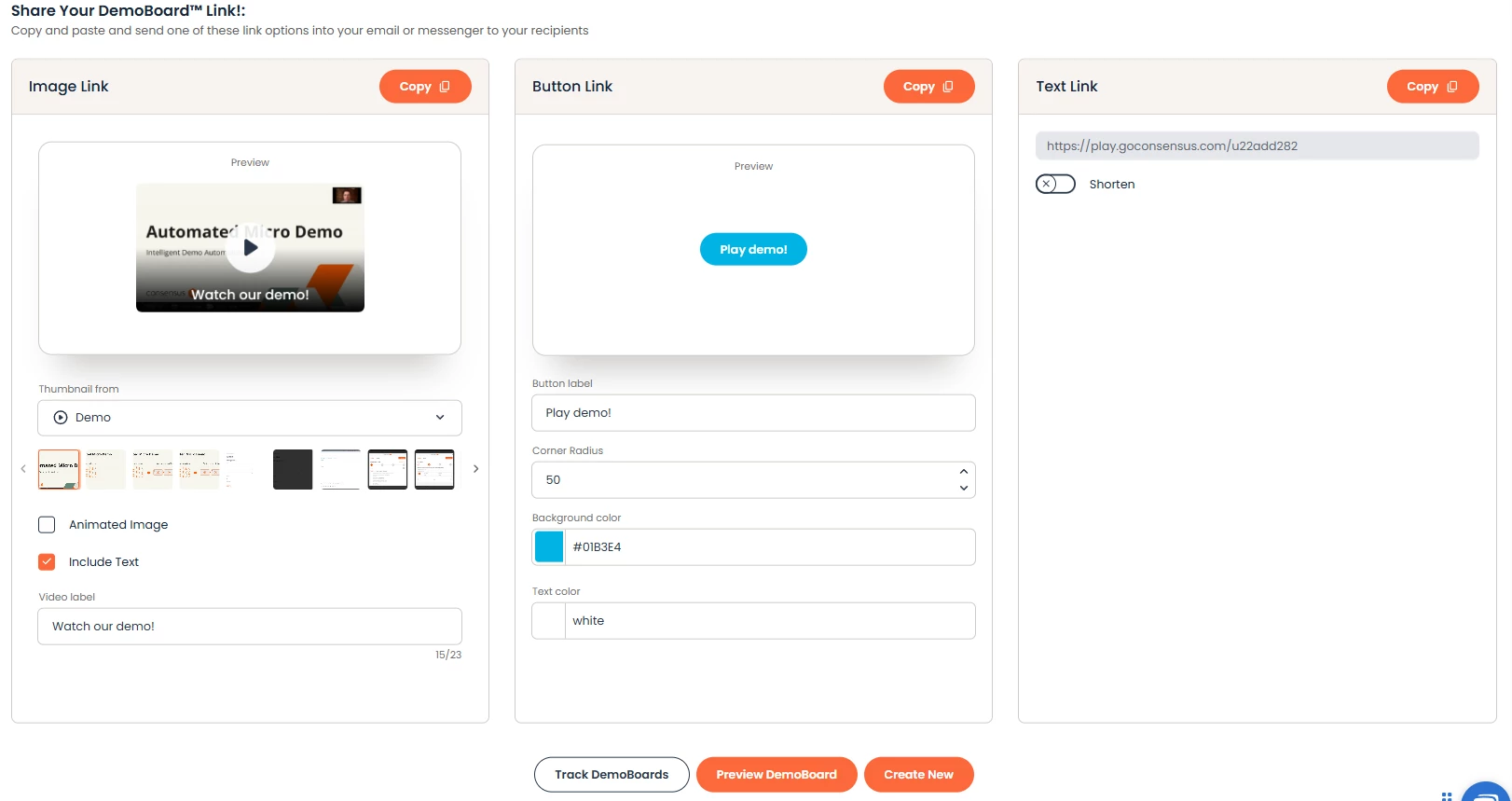
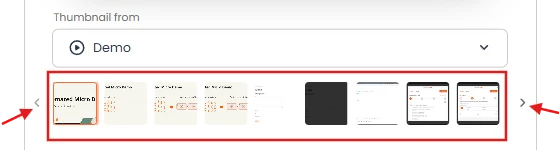
The image link will default to an image from your Personal Intro Video or from the first video within your Demo if no Personal Intro Video exists. You can choose from different screenshots from the videos by clicking the arrows on both sides of the thumbnails.
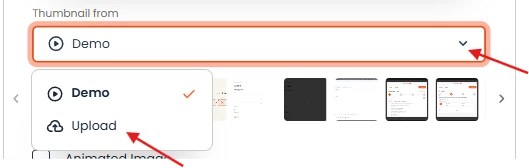
To upload your own custom image, click the drop-down menu and select Upload. Now, you have the opportunity to provide an even more personalized experience for your prospect.
Consensus supports GIF, PNG, and WEBP formats for animated links. We recommend using JPEG or PNG formats for image links
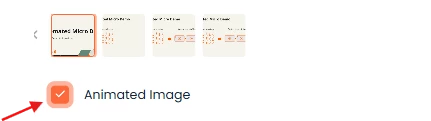
NOTE* While Consensus supports several animated link options, not all services do. When they do not, you will typically see a static image of the first frame of your animated link. We recommend using GIF format as it offers the broadest range of support.
For non-animated images, you can also add custom text to your link
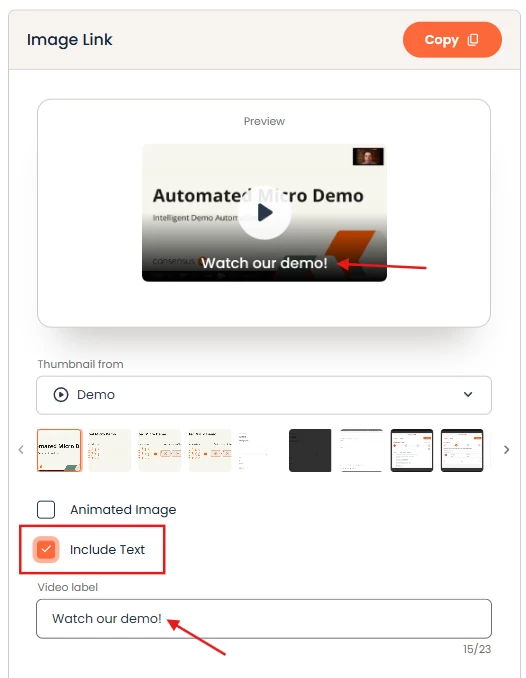
Use an image that will encourage your prospect to open the link. You could use your company logo, an advertisement for one of your upcoming webinars, or even the profile picture you use for LinkedIn. At this point, I would also encourage you to include a custom message for your prospect. I like to point out that the link is for a demo and let them know the time commitment for watching the demo.
Don't forget you can also upload a custom image if you create your DemoBoard using Consensus Snap.