

You now adjust whether a demo on your website will autoplay or not.
Whether your demo is embedded on your website using a typical iframe or being displayed within a lightbox, you now have the option of autoplay.
One thing to keep in mind is browsers like Chrome and Firefox are now allowing users to enable a setting blocking videos from "autoplaying", so there is a chance the demo won't autoplay for all prospects.
To enable autoplay navigate to the Public Links > Create Public Link. You'll select the demo you want to use and click "Copy Link" or “Copy Embed Code”. Once the link is generated, you'll have the ability to toggle on/off the autoplay feature:
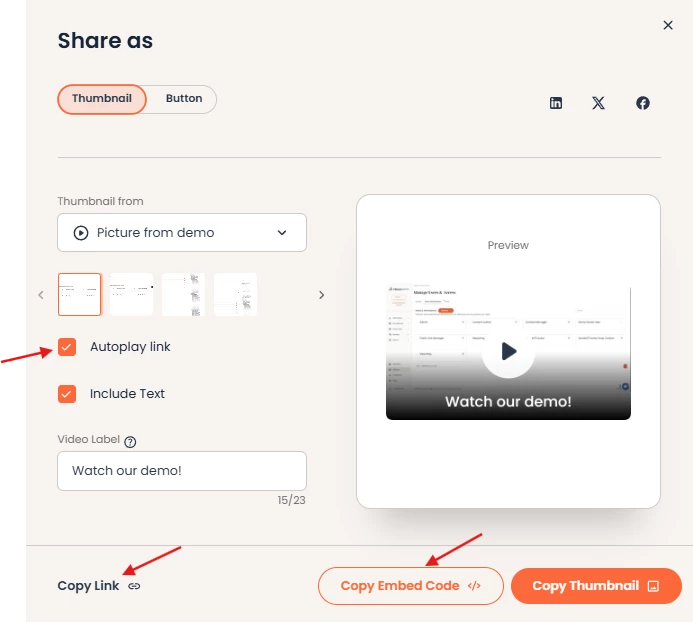

*Please note that changing the autoplay function of a demo changes the coding in the link of the demo. You must replace the link on your website for autoplay changes to apply.
DemoBoards created through the Sales Accelerator or through Demo Send integrations (e.g. Gmail, Outlook, Salesforce) will not be affected by these settings.