
Consensus allows you to set a Lead Gate for Standard and Single Video demos that you wish to post publicly.
This allows you to use your demo in marketing efforts as a powerful Lead Generation tool.
For Single Experience and Standard Demos - How to adjust the Lead Gate order as it appears in your Demo:
- Navigate to the Demos dropdown on the left-hand side of the menu bar and select "Demo Library.”
- Within the "My Demos" tab or the "Demo Library" tab, find the Demo you want to edit the Lead Gate position.
- In the "Actions" column, select the "pencil" icon of the Demo you want to edit.

- With the Demo Wizard now open, select step 5, "Additional Interactions," to edit your Lead Gate placement from the drop-down.
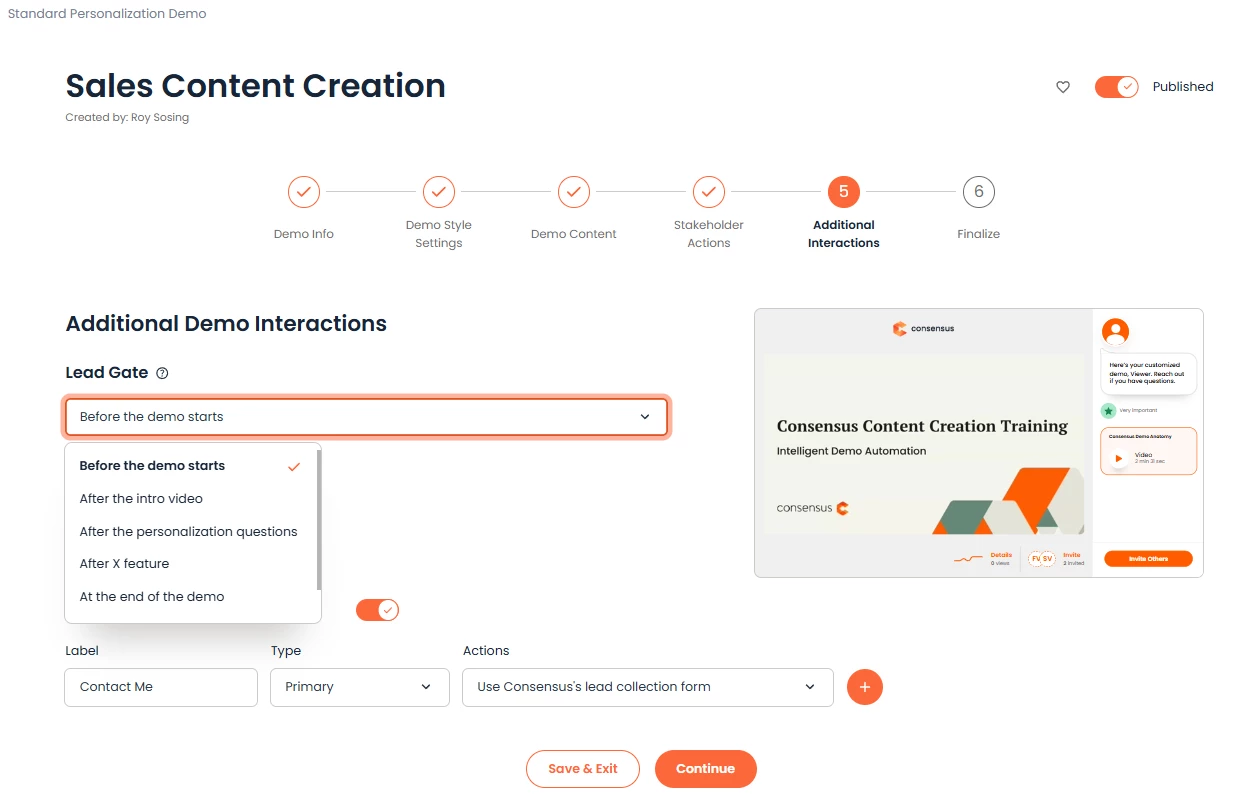
- .Once the Lead Gate is set to your preference, click "Save & Exit." This will ensure that the Demo and all prior Public Links associated with it are updated automatically.
NOTE: A user must have the correct user role assigned and access level to edit a demo.
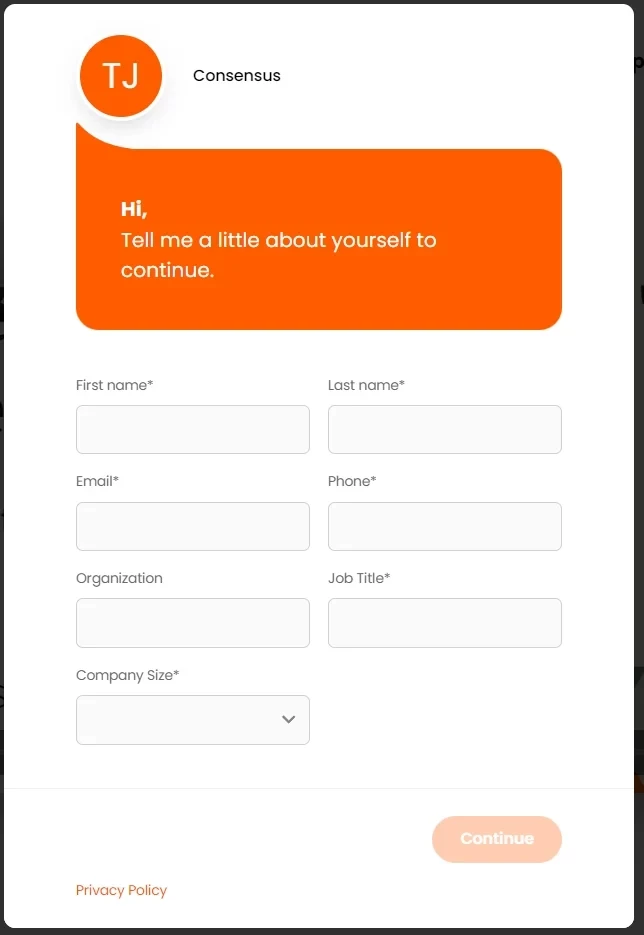
For Discovery Demos: How to adjust the Lead Gate order as it appears in your Demo:
Discovery Demos have even more flexibility on where your lead gate appears.
- You can start the Demo with a Lead Capture Form by selecting it from the initial drop down list
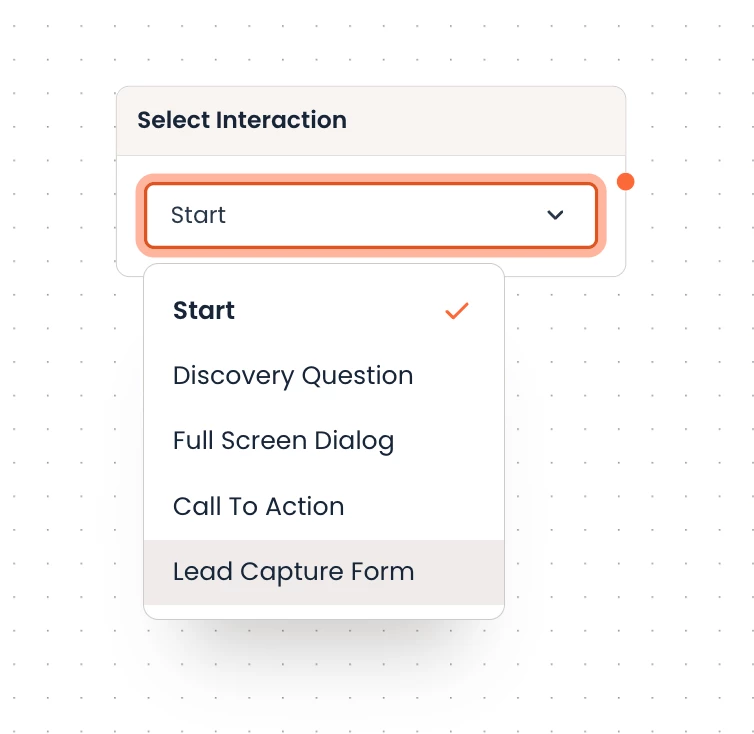
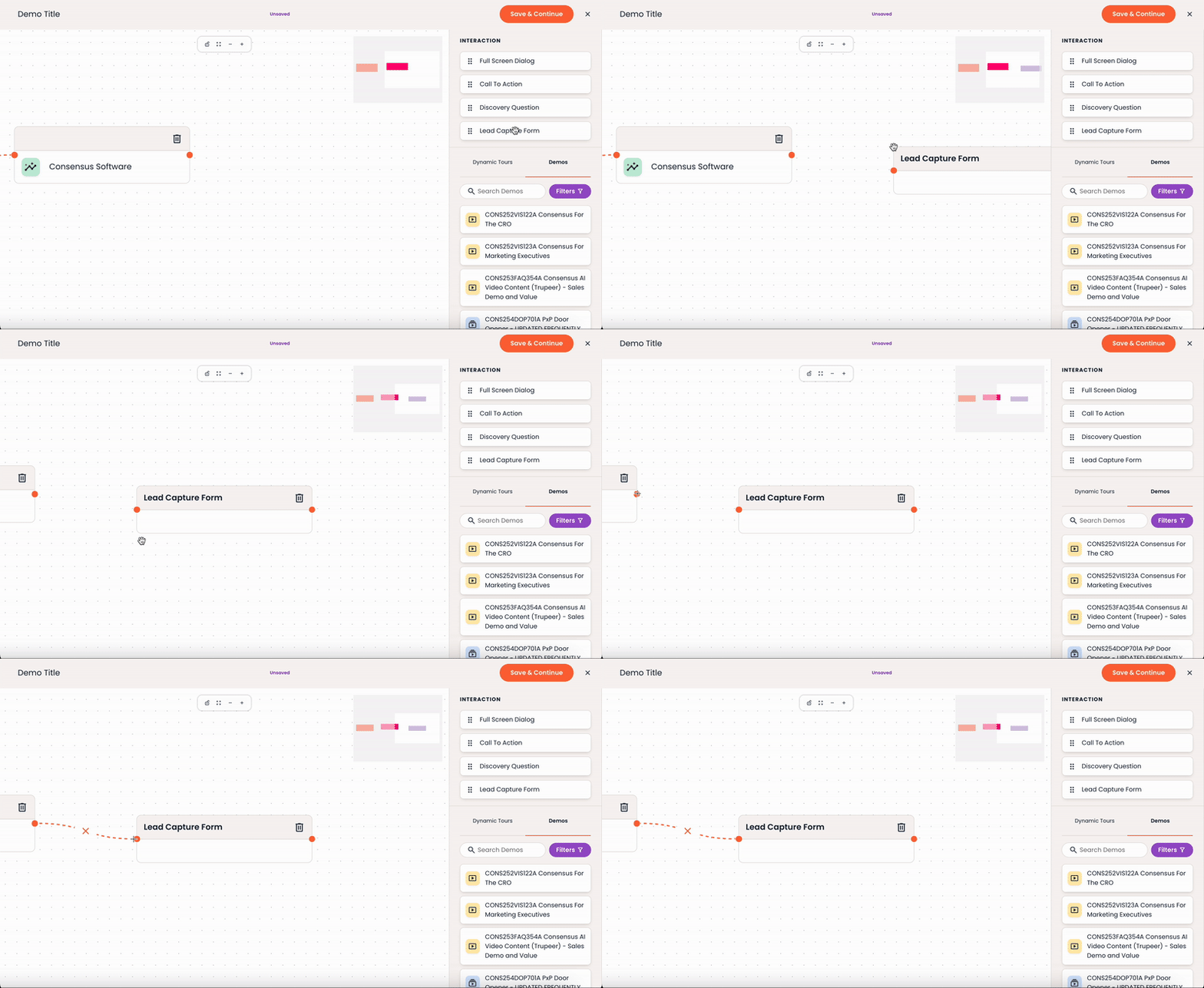
- You can also drag and drop the Lead Capture Form anywhere in the Discovery Demo Builder
You have now completed updating your Lead Gate within your Demo!