
With The Consensus product release in early 2023, we now have a new look standard for all of our Demo Themes. Each user will need to set their default Demo Language, Images & Colors, once these settings are configured they will save for future use.
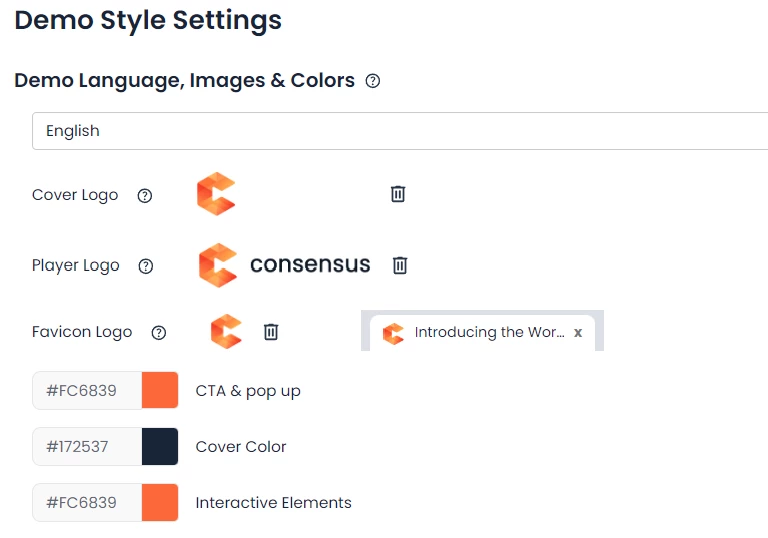
To edit DemoPlayer Language:
1. Choose the language you want to default your DemoPlayer to from the drop-down menu.
Setting the language will only translate the native text within the DemoPlayer, it will not update the language in the uploaded content such as videos and documents.
To edit DemoPlayer Images:
1. To change a logo or image already added to the settings, you'll first need to delete the current image by selecting the "trash" icon.
2. Once the image has been deleted, you'll see a prompt to "upload" a new image. Find the image within your files and select "open" to upload the new image.
3. Once the image is updated, it will update across all Demoboards created from this Demo the next time a viewer enters the DemoPlayer.
To edit DemoPlayer colors:
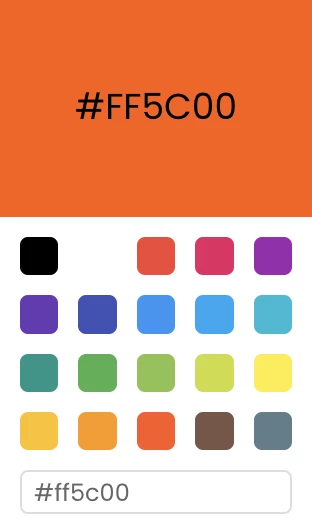
1. Click on the Hex Color Code (we love #FC6839 but you can pick whichever you wish) or the color preview next to it to edit the color for the item you are updating.
2. Either select one of the default color choices or add the Hex Color Code within the field at the bottom of the color picker. (This should be a # symbol and a 6-digit alphanumeric code)
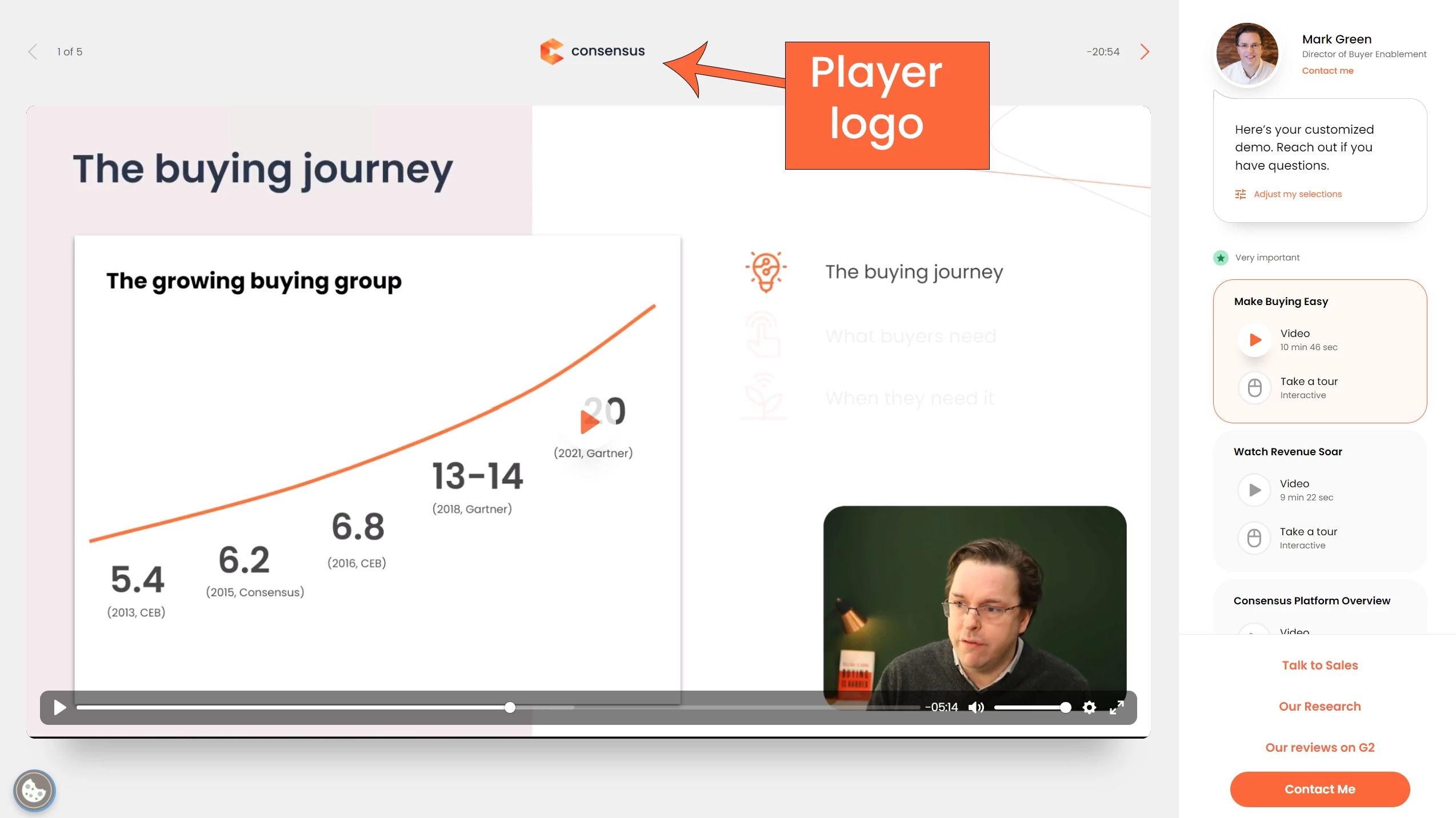
Demo Images & Color Reference Guide: How it looks on the Demo Player
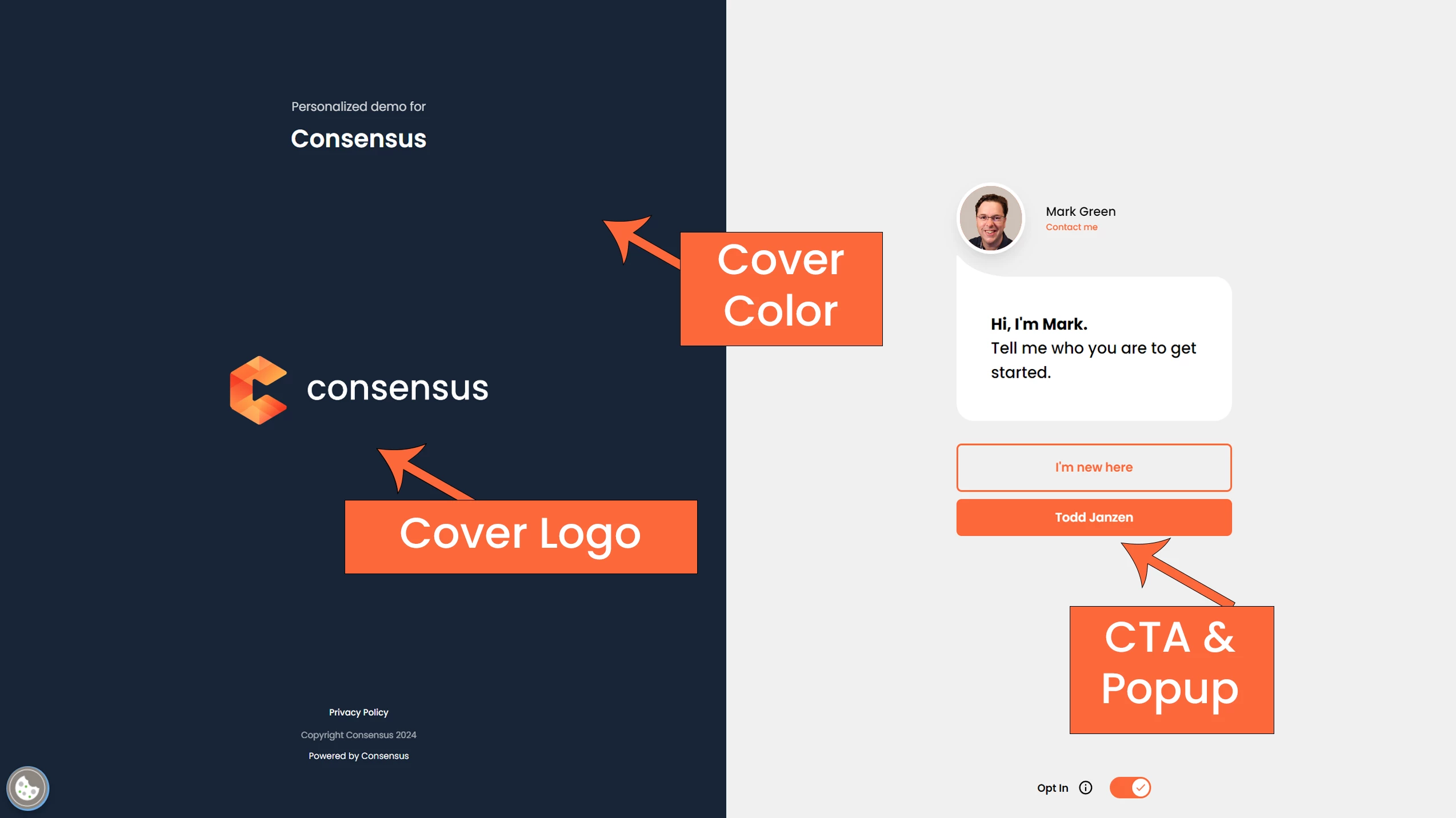
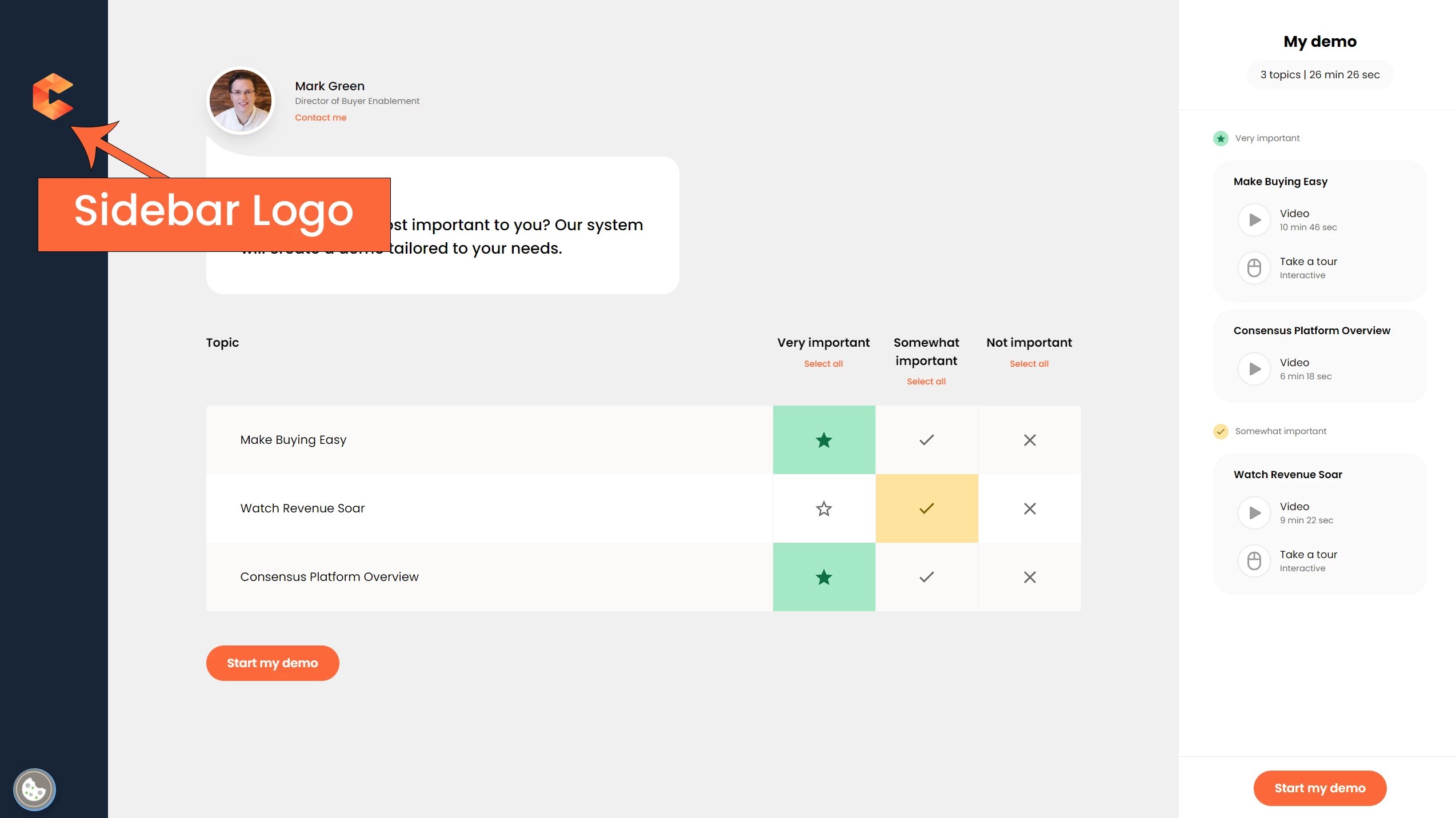
*Side bar logo is only available on standard personalization demos (above image)