In this article we will review what Demo Filters and Sorting are available when creating a DemoBoard in Snap.
In the bustling world of B2B sales, finding the right demo quickly can be a game-changer. Snap's advanced filtering and sorting options allow you to effortlessly zero in on the most pertinent demos, thereby enhancing buyer engagement and optimizing your sales process. This guide will walk you through the steps to effectively utilize these in Snap to find the right demo for your needs.
Getting Started
Filters and Sorting in Snap are designed to help you narrow down the extensive list of available demos by applying specific criteria. This functionality enables you to customize your search, ensuring that you quickly find the most relevant demos.
How to access the Filters and Sorting
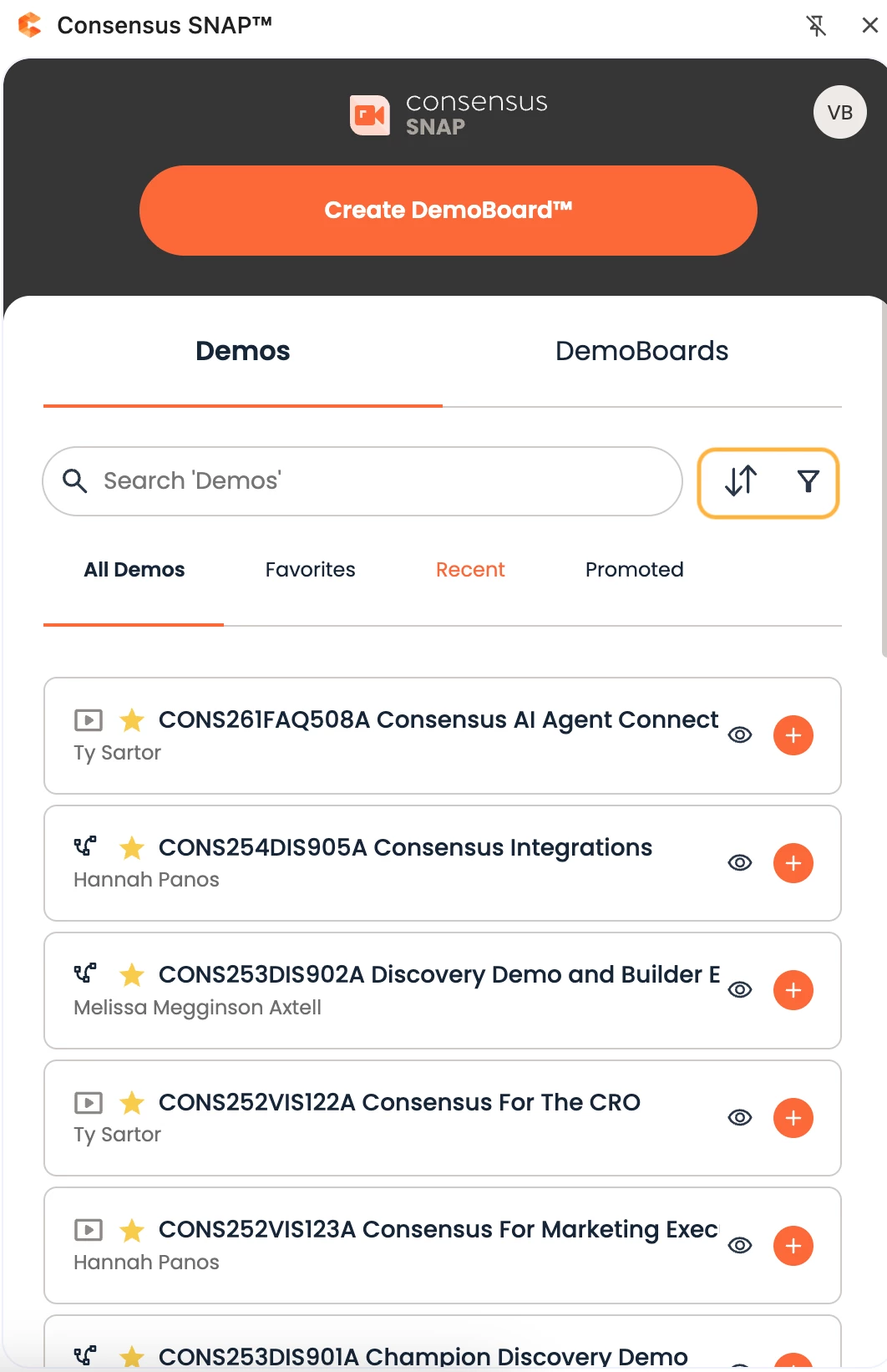
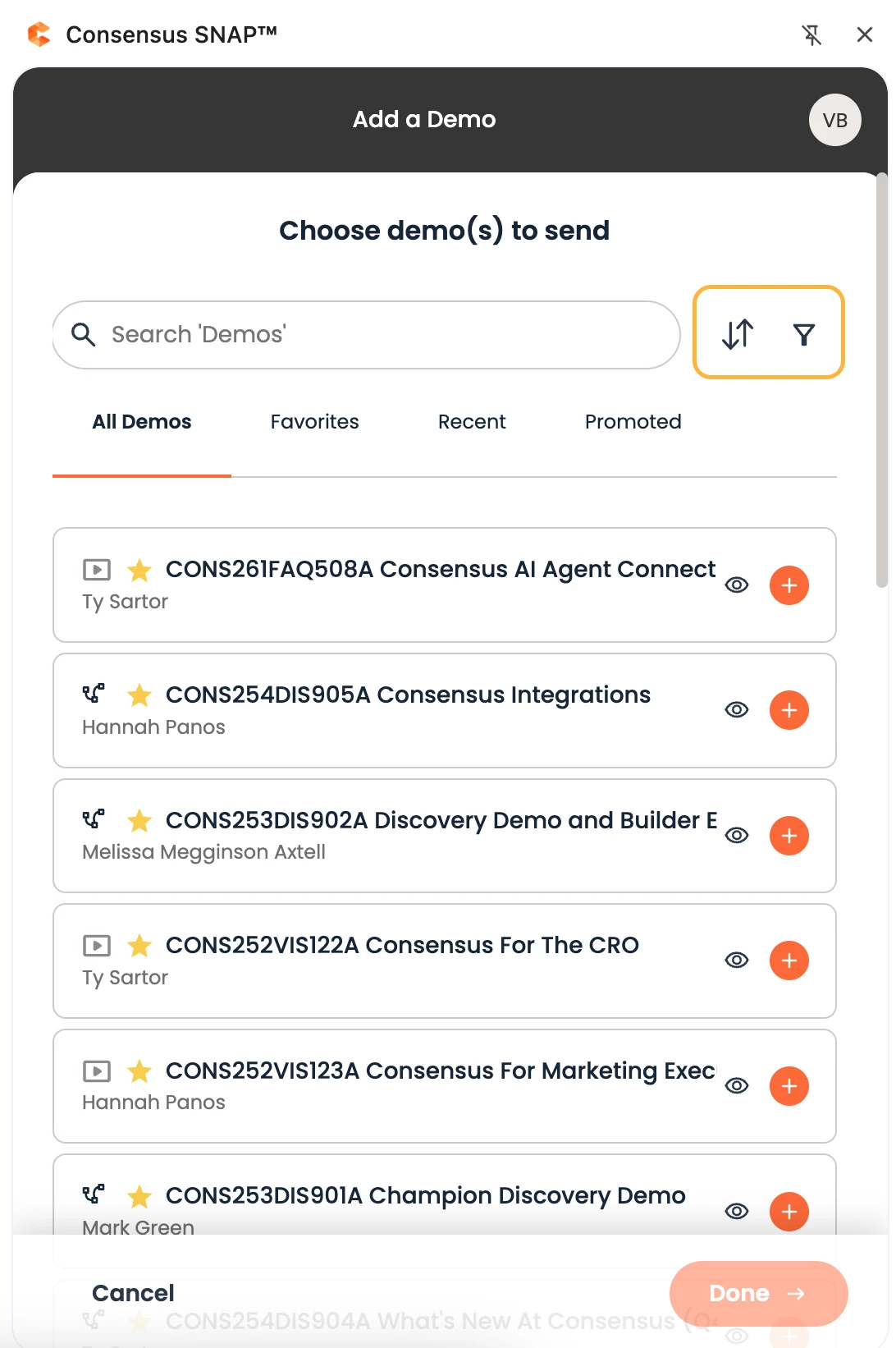
There are two places where you can filter and/or sort your Demos in Snap:
- Snap Home page → Demos
- Snap Home page → Create DemoBoard → Add a Demo
Demo Filters
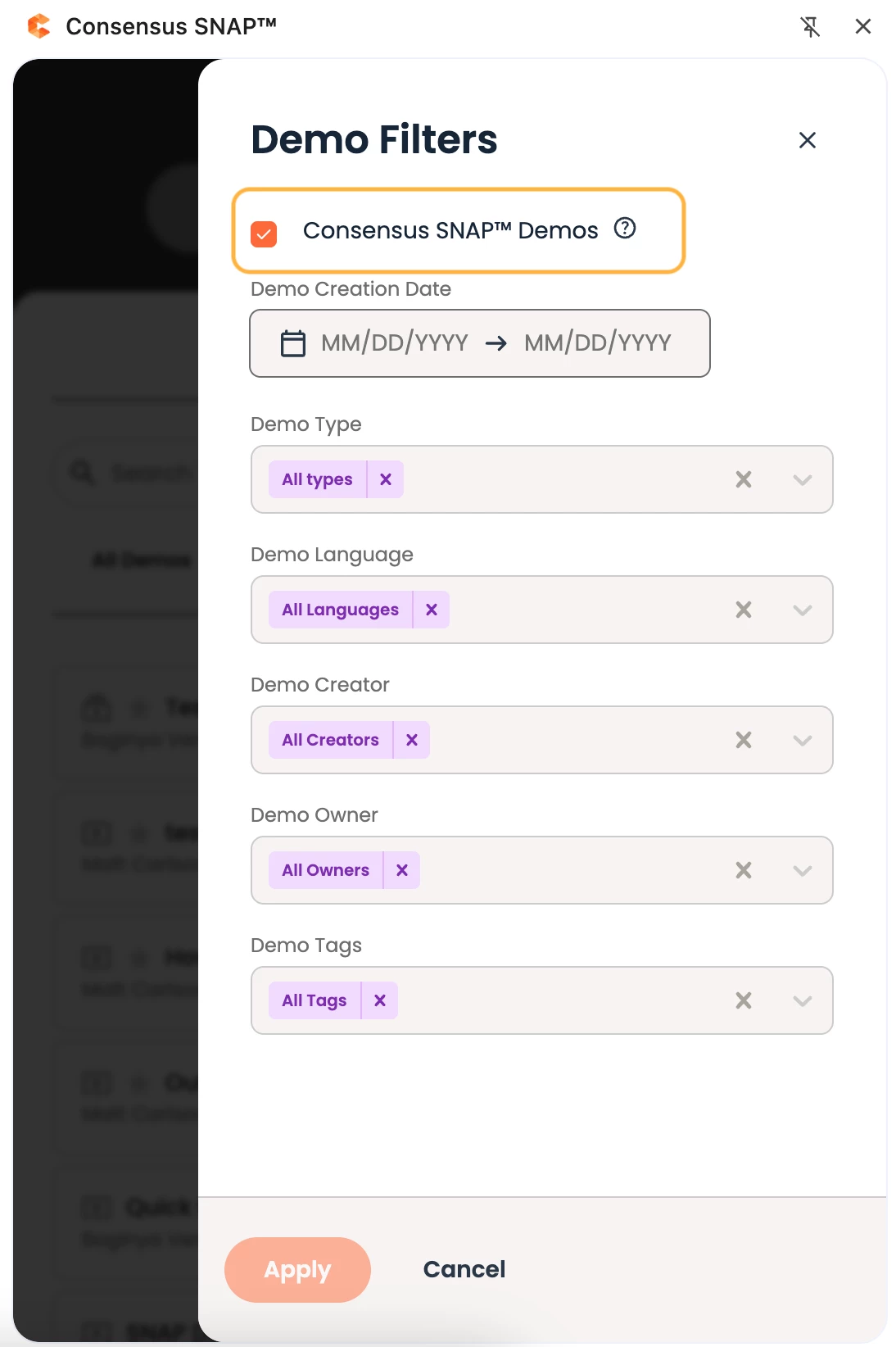
There are three types of filters:
- Checkbox → applied when the checkbox is selected
- Date Range → a date picker allowing users to select a specific date range
- Multi-select dropdown → users can select multiple values from a predefined list
Checkbox filters
As mentioned these will be activated if the checkbox is selected/enabled. Currently supported filters are:
- Consensus SNAP™ Demos → filters demo search results by only demos created within Snap
Date Range Filter
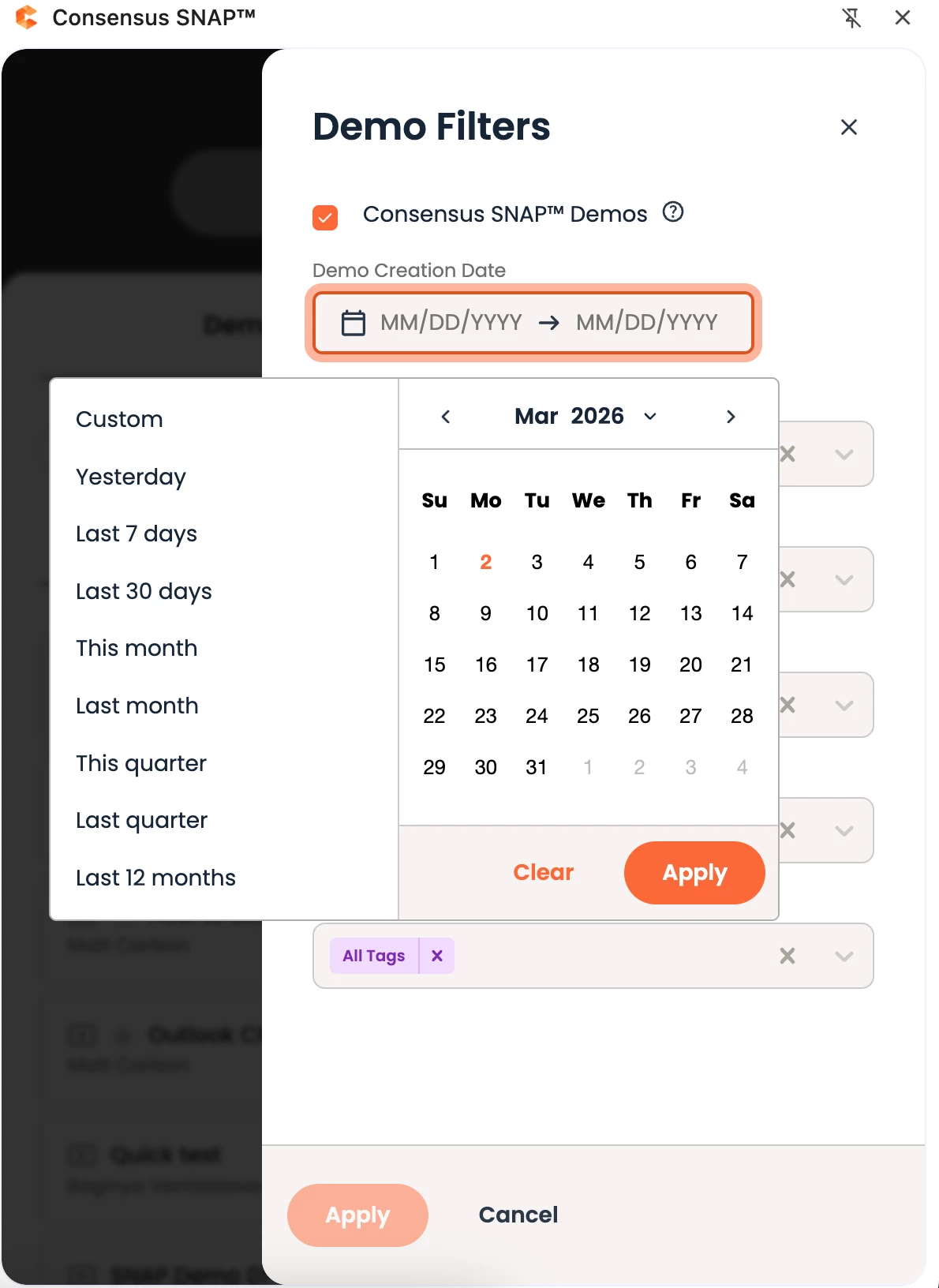
The ‘Demo Creation Date’ filter allow users to select a custom or pre-defined date range. Once applied the demo search results will be filtered by demos created in the selected timeframe.
Multi-select Dropdown Filters
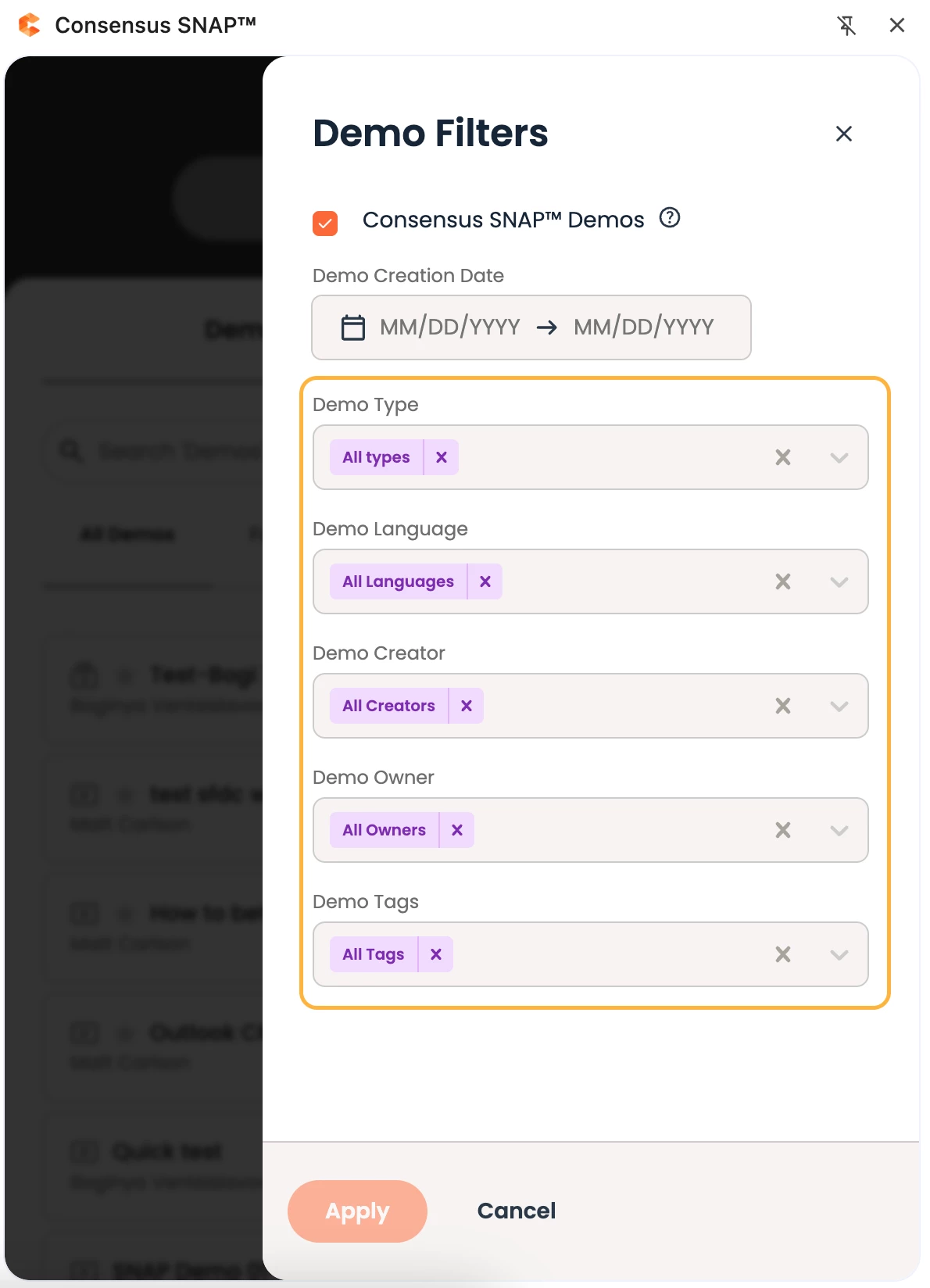
These filters allow users to select from a list with pre-defined values. Available filters are:
- Demo Type:
- Single
- Standard
- Advanced
- Demo Language
- Demo Creator → users from current Organization
- Demo Owner → users from current Organization
- Demo Tags → more information how to create and manage Tags can be found Here.
Demo Sorting
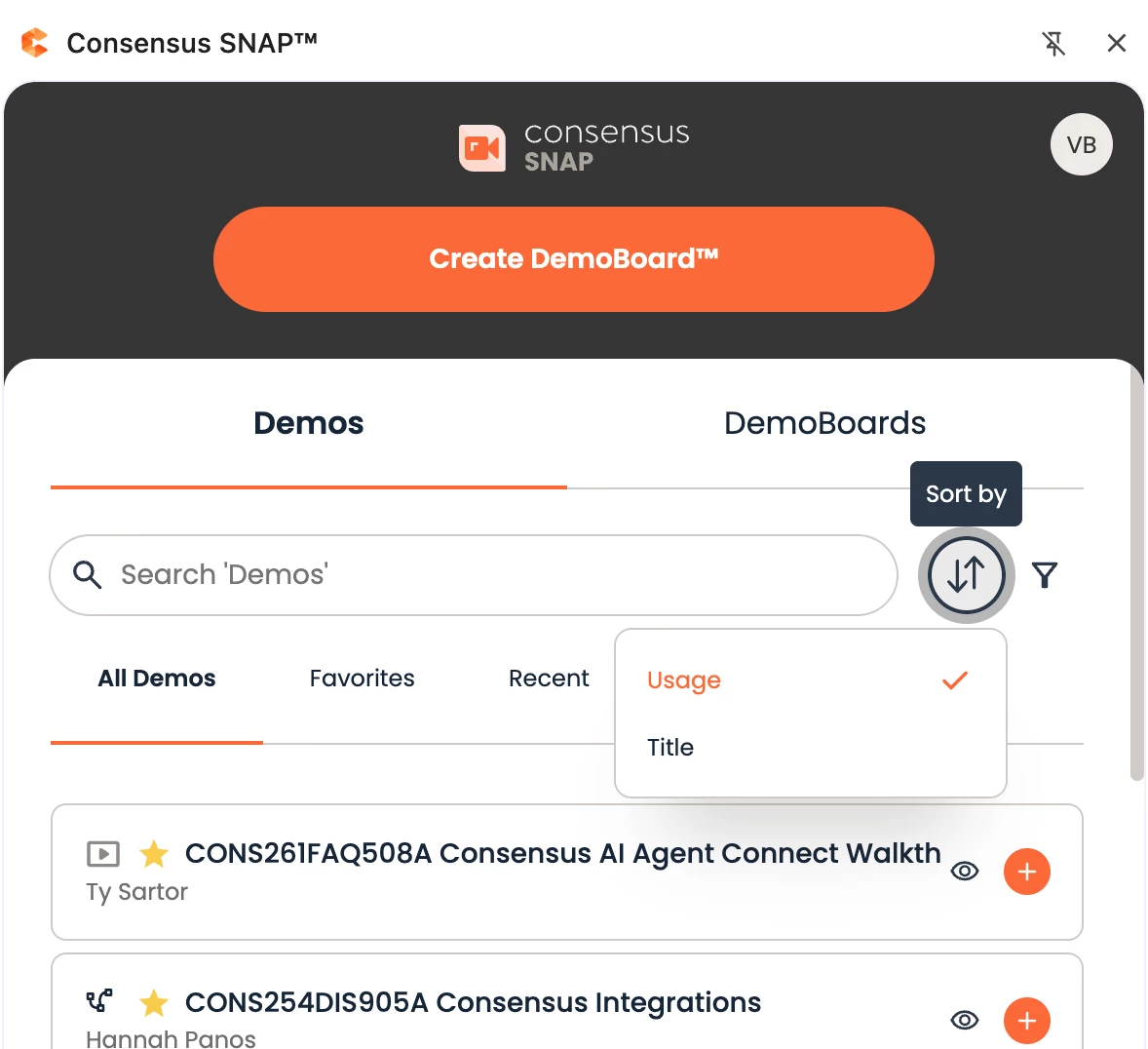
Besides filtering, users can also sort their list of Demos by:
- Usage → demos that have been used the most
- Title → sorting by title ascending (from A to Z)
Note: Default sorting is by Usage.
General Functionality
- When users log in to Snap initially (before making changes to the filters) all Demo content is loaded. Because of this the ‘Consensus SNAP™ Demos’ checkbox will be selected by default.
- When changes to the filters’ values are being made users must click the ‘Apply’ button for the Demo content to be filtered by the selected criteria. Additionally, users can use multiple filters at once.
- The filters and sorting are not available in ‘Recent’ tab.
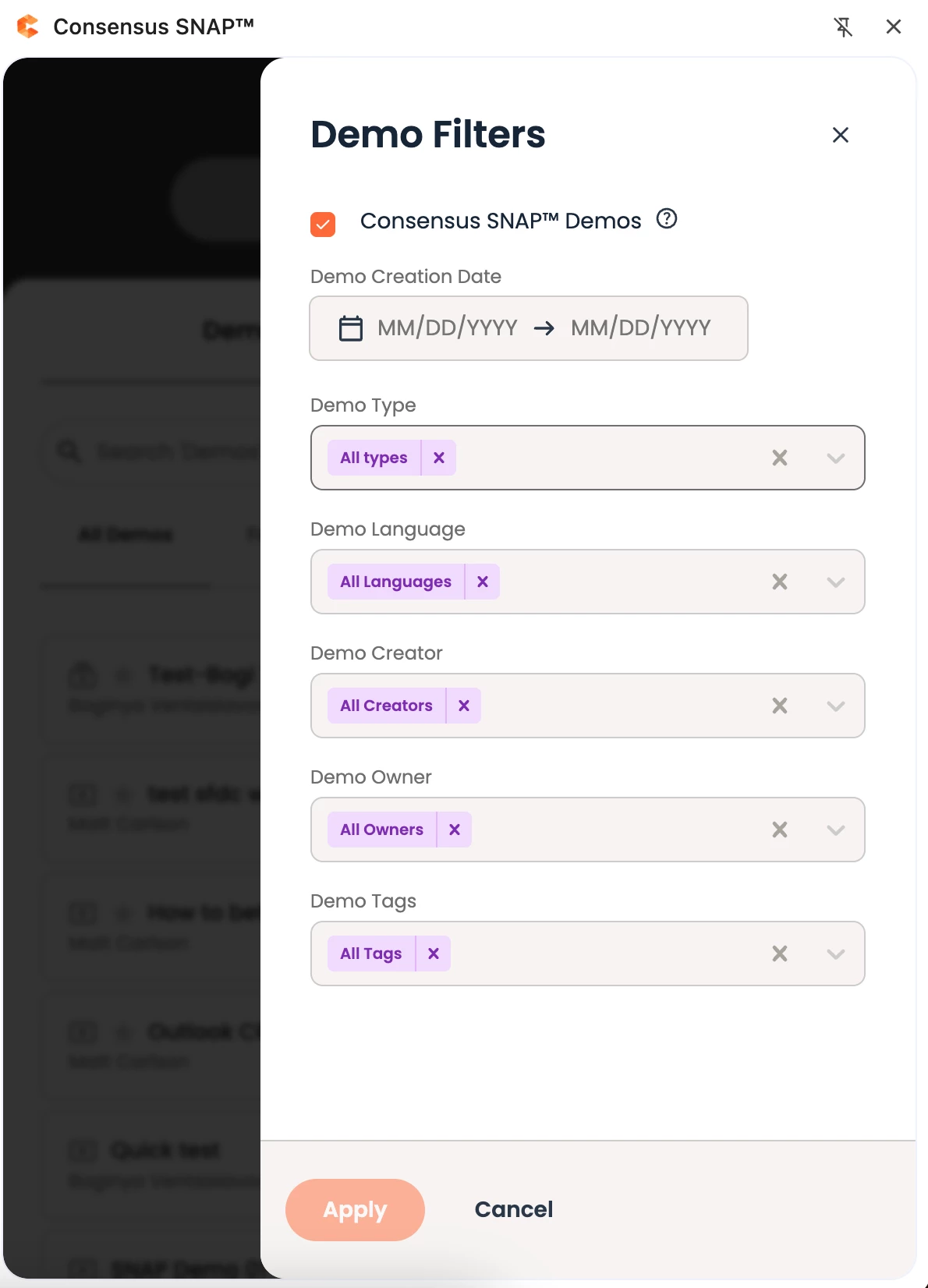
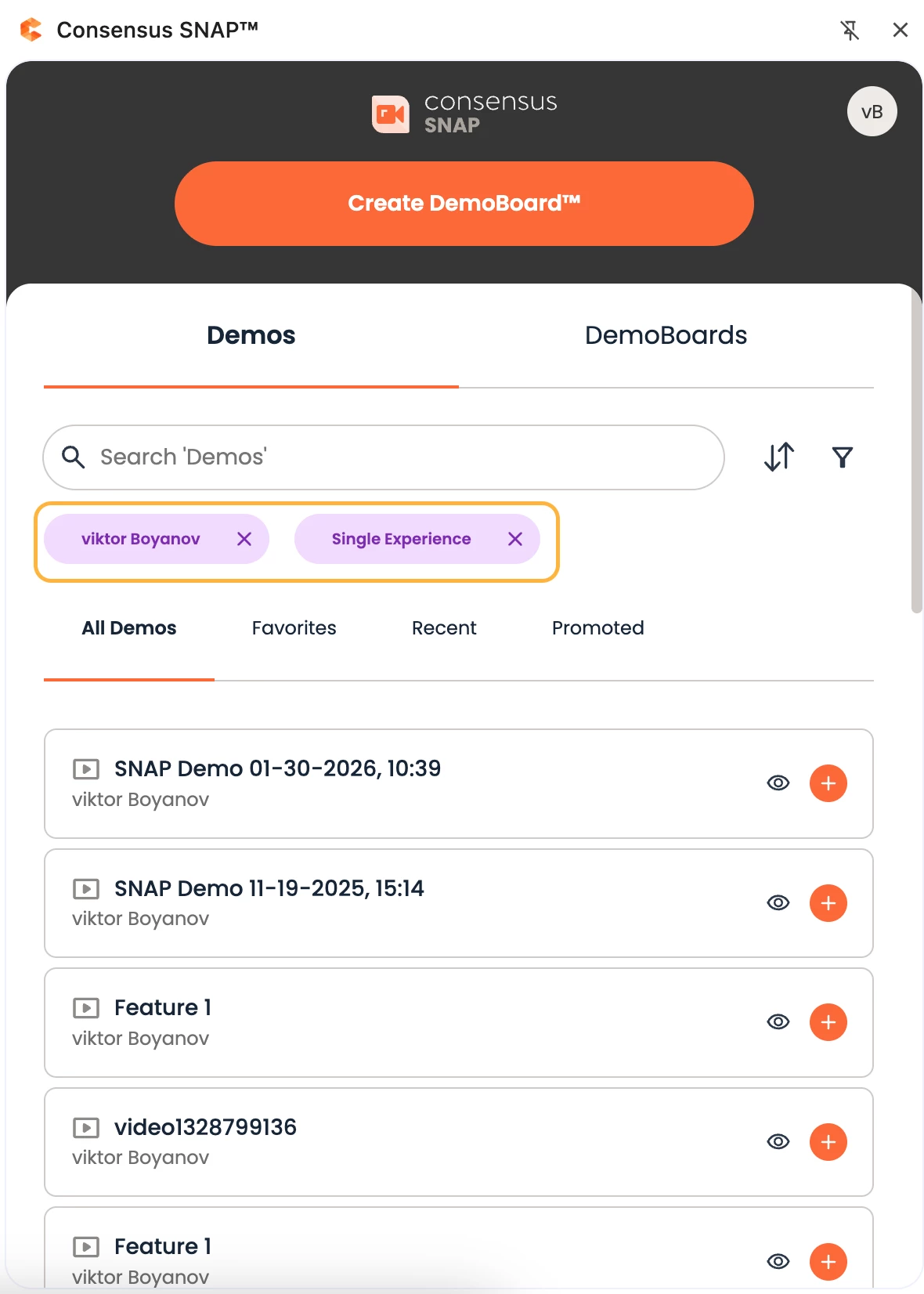
- Besides the filter page, users can also see if there are any applied filters on the ‘Choose demos to send’ page as shown below
- Note: This applies only for the multi-select dropdown filters.
Persistence
There is persistence for the selected filters and sorting for the ongoing DemoBoard session of the user. Meaning if users close Snap or the browser and re-open it, their filters’ configurations will be kept.
Filters are going to be reset in the following cases:
- Users close snap or the browser before hitting the ‘Apply’ button.
- Users close the Demo Filters page without hitting the ‘Apply’ button.
- Users manually reset the configurations and ‘Apply’ the changes.
- Users cancel the DemoBoard creation process by either:
- Activating the ‘Cancel’ button
- Clicking on the back arrow
- User logs out of Snap.