
Consensus allows you to use your Demos to enable your Resellers while helping give you deep insights into their activity. The Consensus Channel Accelerator makes it simple to set up your Resellers, assign them specific demos and track each Resellers’ activity to easily understand their performance. In this article we will review the following:
- Creating Resellers in your Account
- Creating and Assigning Reseller Users
- Giving Demo Access to your Resellers
- What Can Resellers Users Do
- The Reseller DemoWizard
- Demolytics for your Resellers
Creating Resellers in your Account
When the Channel Accelerator is activated within your Consensus account, Resellers are created as Groups under Manage Users & Access. This allows you to add your Resellers directly within your Account Hierarchy, making it easy to build out a multi-tenant Reseller structure. Below, we will walk through creating a Reseller Group:
- Click the Settings
 in the lower left-hand corner then select Manage Users & Access
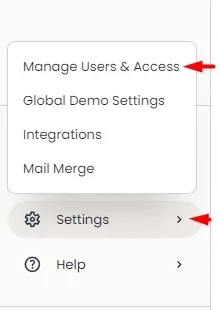
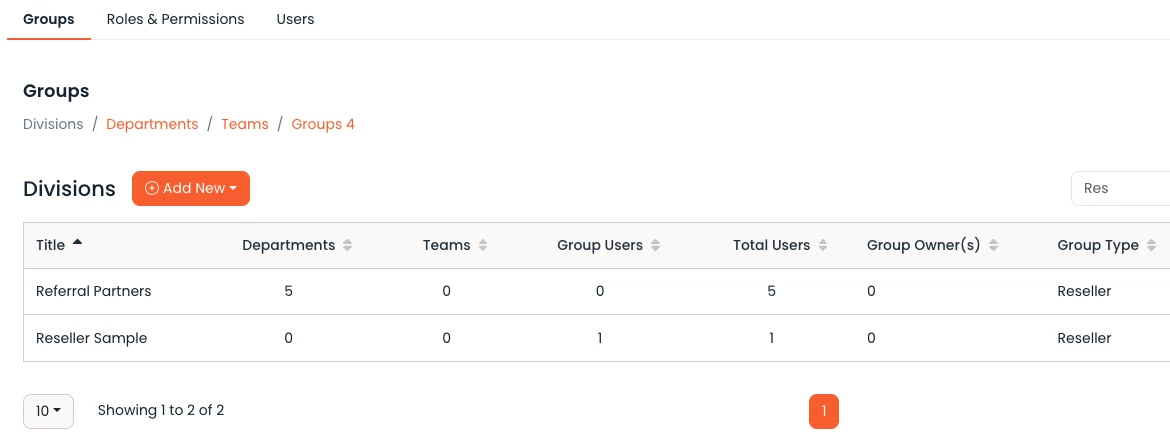
This will bring you to the Groups tab under the Division level (the first level underneath the Account level). Click on the ‘Add new’ button then select Reseller Group to add a new Division level Reseller Group.
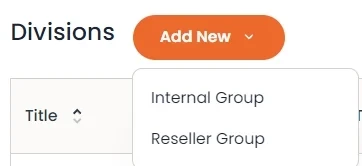
-
- Note: Reseller Groups cannot be changed into Internal Groups. The system will give you a warning about this each time you create a Reseller Group, but you can mark to have it not show the warning after the first time.
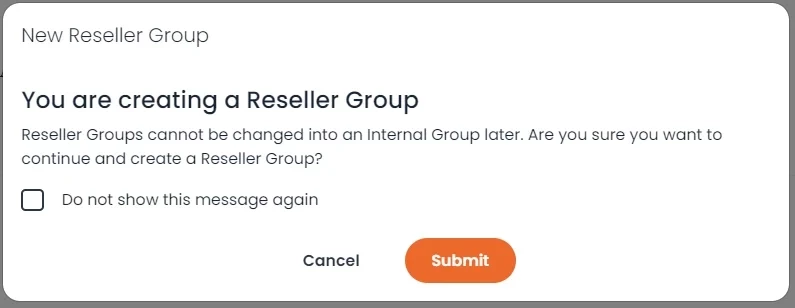
“You are creating a Reseller Group” - Note: If you want to place the Reseller Group underneath an existing Group you can simply click on the More Actions button and select Create Subgroup
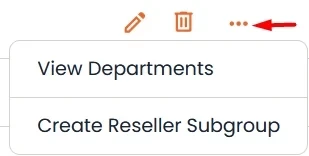
3 dots or more action button
- Note: Reseller Groups cannot be changed into Internal Groups. The system will give you a warning about this each time you create a Reseller Group, but you can mark to have it not show the warning after the first time.
Within the Create Reseller Group page you can now set up your Reseller. Let’s review the fields within the Group Details page:
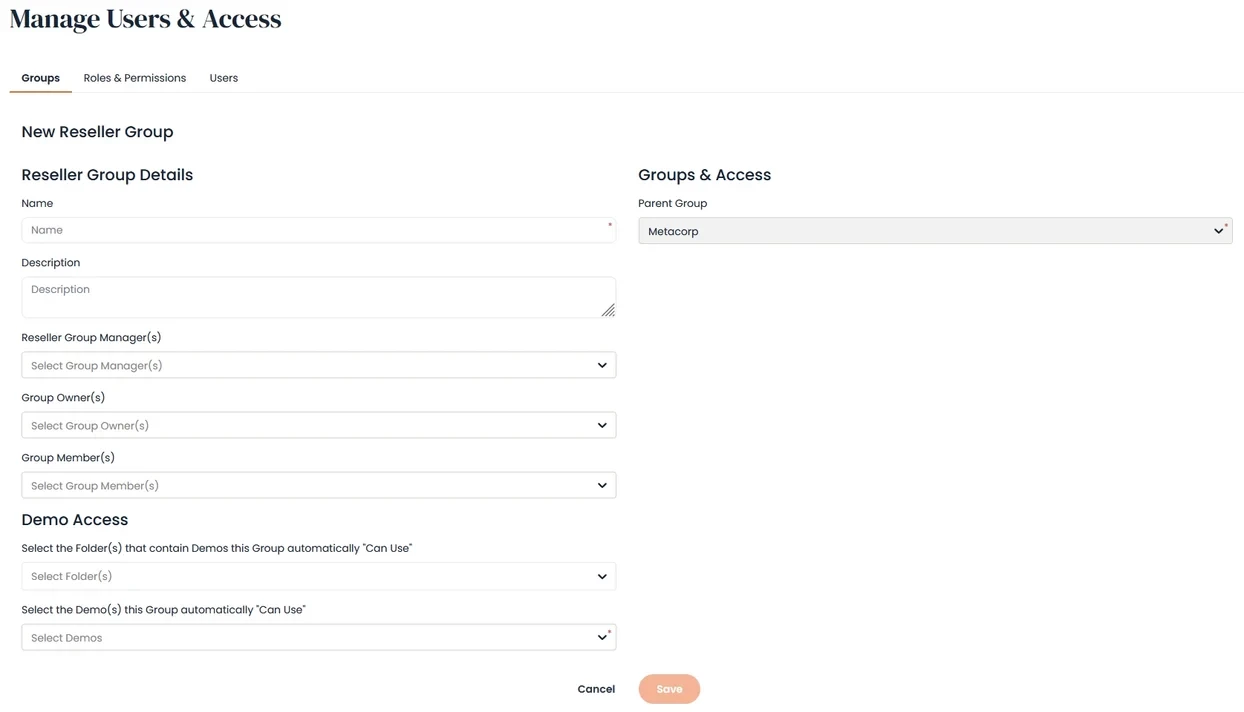
| Name | This will be used within Dropdowns in Demolytics, Groups, & User Management |
| Description | Can be used to help give additional insight into the purpose of the group |
| Reseller Group Manager(s) | These are Internal Users that will have access to manage the Reseller Group and Subgroups as well as see their demolytics within the Channel Accelerator. This allows your Partner Account Managers to easily assist their Resellers use Consensus. |
| Group Owner(s) | This can be set once you have added Group Members. Group Owners have access to manage the Users and Demos available to their Group and Subgroups. |
| Group Member(s) | This is where you can add the Users for this Reseller Group. Users within a Reseller Group have limited access to the system and are limited to certain Roles (see note below for more detail). |
| Demo Access | Set the demos that Users within this Group can use based on their permissions |
| Parent Group | This determines the Parent Group that the Reseller Group you are creating resides under |
Once you have the Group fields filled out, simply click Save at the bottom of the page to create your Reseller Group account:
Creating and Assigning Reseller Users
Reseller Users are limited in what they can do within your Account. This is done by limiting Resellers to certain Roles as well as limiting the Roles themselves. Adding Users to a Reseller Group will automatically make them Reseller Users and limit their access based on the following:
- Users added to a Reseller Group can only have the following Roles
- Sender/Tracker
- Content Manager
- Public Link Manager
- NOTE* If a user is added to a Reseller Group already has a Role not available to Resellers, that role will be removed.
- Reseller Group Users cannot perform the following actions
- Create Demos
- Access the Full DemoWizard
- Reseller can only access the following steps:
- Demo Style Settings
- Stakeholder Actions
- Additional Interactions
- Reseller can only access the following steps:
- Access Global Demo Settings
NOTE* To see how to Add a User to your Account, take a look at the following KB article here.
There are a few different ways to add Users to your Reseller Groups.
- From Creating a New User
- Simply select the Reseller Group in which you want to place the New User to set this User as a Reseller
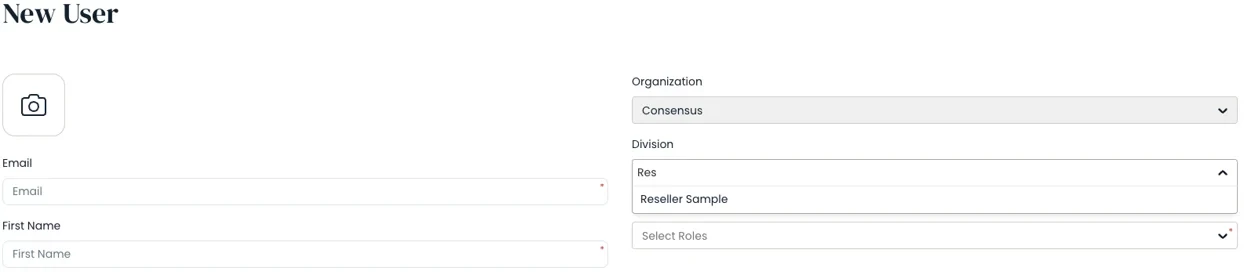
New User
- You can also set the Group of your Users as you Bulk Upload them. Simply set the Group as the Reseller Group you have set up and those Users will be Reseller Users
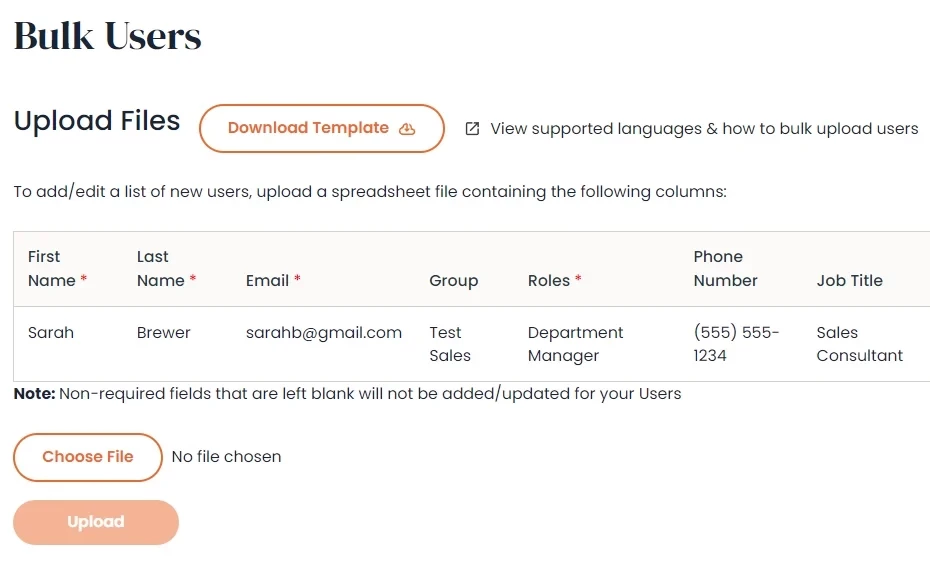
Bulk Users
- Simply select the Reseller Group in which you want to place the New User to set this User as a Reseller
- From the Manage User page
- You can set the Group that a User is in right from inside of the Manage Users page. Simply use the Group drop-down to select the Reseller Group where you want to place your User

- You can set the Group that a User is in right from inside of the Manage Users page. Simply use the Group drop-down to select the Reseller Group where you want to place your User
- From the Create/Edit Group page
- You can set Users within your Reseller Groups as you create/edit them. This allows you to easily add multiple group members to your Reseller Groups quickly
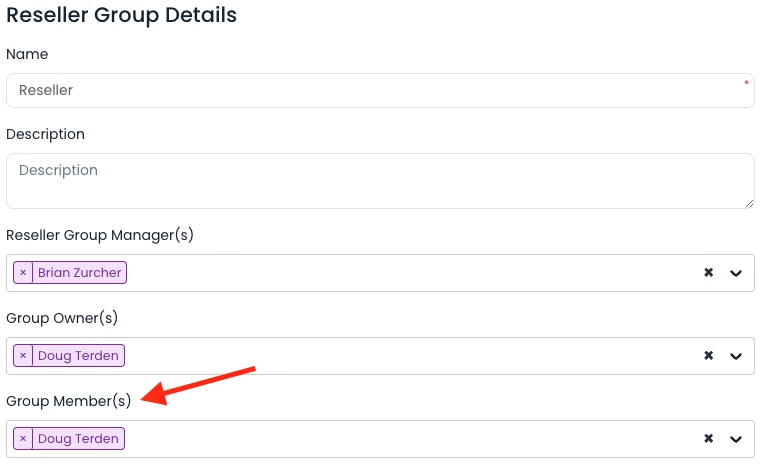
Group Members
- You can set Users within your Reseller Groups as you create/edit them. This allows you to easily add multiple group members to your Reseller Groups quickly
Giving Demo Access to your Resellers
Giving Demo Access to your Resellers allows them to use your Demos based on the permissions they have within their Role. Roles for Resellers are limited to secure the content of your demos (we’ll dig into that later). There are two primary ways you can give Demo Access to your Resellers.
- From the Create/Edit Reseller Group page
- You can easily add the Demos you want your Resellers to have access to as you create/edit your Reseller Group. This allows you to easily add multiple Demos to your Reseller Groups
- From Step 1 of the DemoWizard
- You can give Demo Access from within the DemoWizard to your Reseller Groups as well. This is done is the 1st step of the DemoWizard. Simply select the Group option, select the Reseller Group(s) you want to give Access to this demo, then click the + button. This will add the Reseller Groups to the Access for this demo
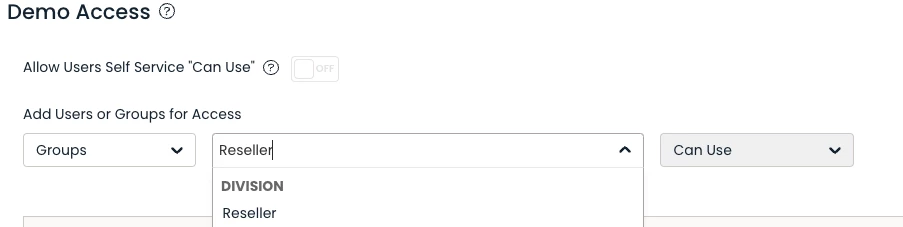
Demo Access
- You can give Demo Access from within the DemoWizard to your Reseller Groups as well. This is done is the 1st step of the DemoWizard. Simply select the Group option, select the Reseller Group(s) you want to give Access to this demo, then click the + button. This will add the Reseller Groups to the Access for this demo
What Can Reseller Users Do
Resellers are fully enabled to utilize the demos you assign to them. There are, however, some restrictions to help ensure that you as the Parent Account maintain control of the Content of your demos. Let’s start by reviewing the Roles that are available o Reseller Uses and the Access they have:
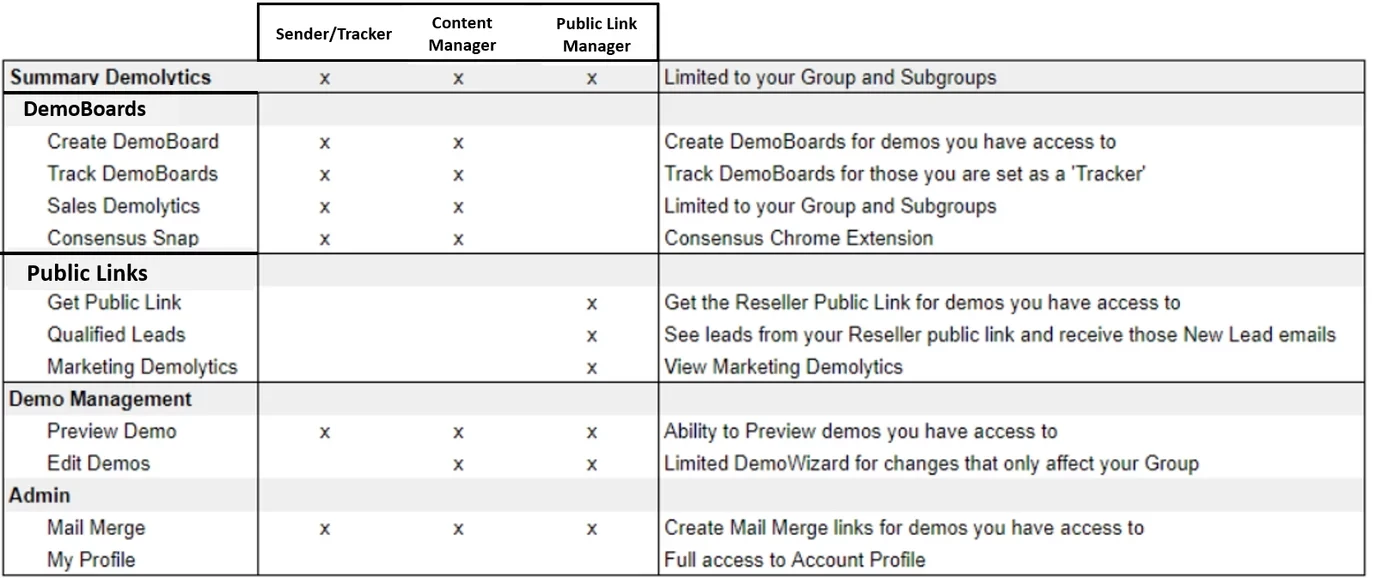
- PRO TIP: Resellers Groups can also set Group Owners which gives additional permissions in managing their Group and Subgroups, such as Users and Demos.
The Reseller DemoWizard
When you give Demo Access to a Reseller Group, they are given a version of the Demo that they can customize for Users within their Group. Any customizations made by the Reseller Group only take effect for demo usage by Users within that Group. This allows your Reseller Groups to customize elements of the demo while making sure your other Internal Users will not be affected by any of the customizations.
Let’s walk through the Reseller DemoWizard to showcase how your Reseller Groups can customize their Demos.
- Demo Style Settings
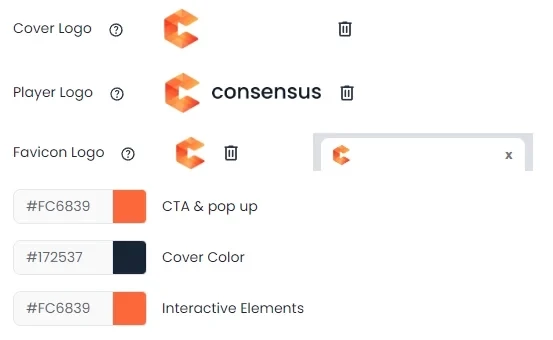
- Reseller Groups can customize the Theme, Contact Info, Images & Colors for their Group. This allows them to ensure the look, feel and contact info lines up for their Organization.
Demo Style Settings
- Reseller Groups can customize the Theme, Contact Info, Images & Colors for their Group. This allows them to ensure the look, feel and contact info lines up for their Organization.
- Demo Actions
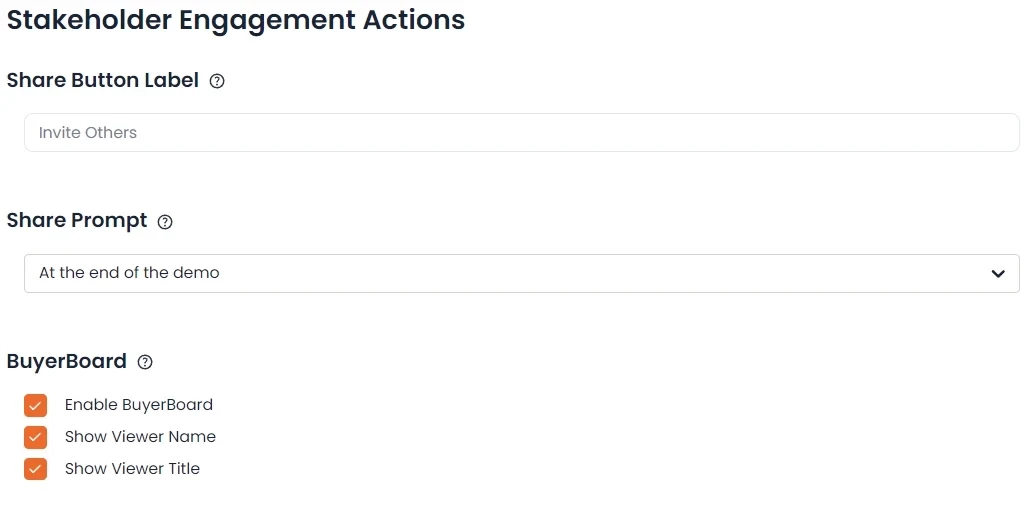
- Reseller Groups can customize the actions for their demo version such as the Share button, BuyerBoard, Lead Gate and additional Call to Actions within their Groups demo version. This allows your Resellers to ensure the demo actions are set based on each of their needs.
Stakeholder Engagement Actions
- Reseller Groups can customize the actions for their demo version such as the Share button, BuyerBoard, Lead Gate and additional Call to Actions within their Groups demo version. This allows your Resellers to ensure the demo actions are set based on each of their needs.
Note* Resellers have no access to customize the content of your demos. This means that you can completely control the messaging of the demos while each Reseller Group can customize the style and other actions associated with it.
Reseller Demolytics & The Channel Accelerator
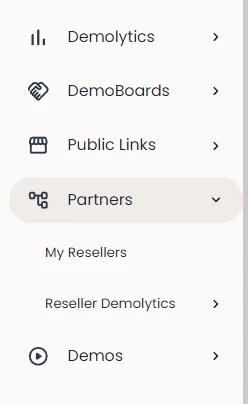
All of the activity for your Reseller Groups are tracked within the Channel Accelerator. Internal Users that are set as Reseller Group Managers, along with Admins, will have access to the Partners Section. Reseller Group Managers will be able to see the Groups for which they have been set as Reseller Group Managers along with their Subgroups. This allows them to easily see demolytics and performance for the Reseller Groups they are over.
Within the Partners section, you will see the My Resellers and Reseller Demolytics sections.
My Resellers
This section is built to give you a high level view of all of your Reseller Groups. This will give you high level information and stats on how well each Reseller Group is performing.

- PRO TIP: Hover over the Assigned Demos to see which Demo has been assigned to that Reseller Group
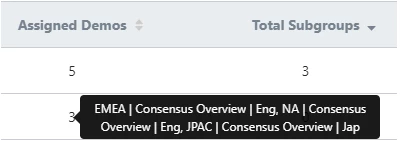
Assigned Demos & Total Subgroups - PRO TIP: Click on the Reseller Group Name to jump right into the Edit Group page for that Reseller where you can easily add Users or Demos for the Group.
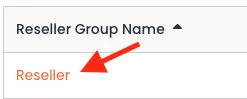
Reseller Group Name > Reseller
Reseller Demolytics
Within this Section we will break down the Demolytics for your Reseller Group the same way we do for your Internal Groups.
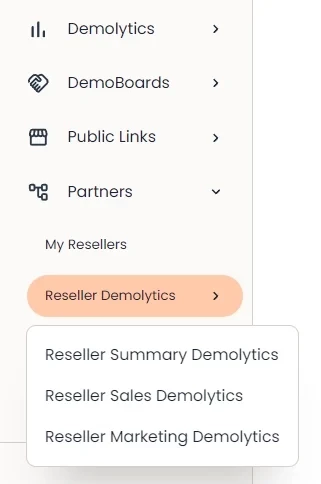
- Summary Demolytics - This will give you a combined view of both the DemoBoard and Public Link Demolytics to see a holistic view of how your Resellers Group(s) are using the demos you have assigned to them.
- Sales Demolytics - This will focus on the Sales (DemoBoard) Demolytics to allow you to dig deep into how your Reseller Group(s) are using the demos with their prospects
- Marketing Demolytics - This will focus on the Marketing (Public Link) Demolytics to allow you to see how your Reseller Group(s) are using the demos for their Marketing efforts.
Learn more about navigating Demolytics by checking out our Knowledge Base article below: