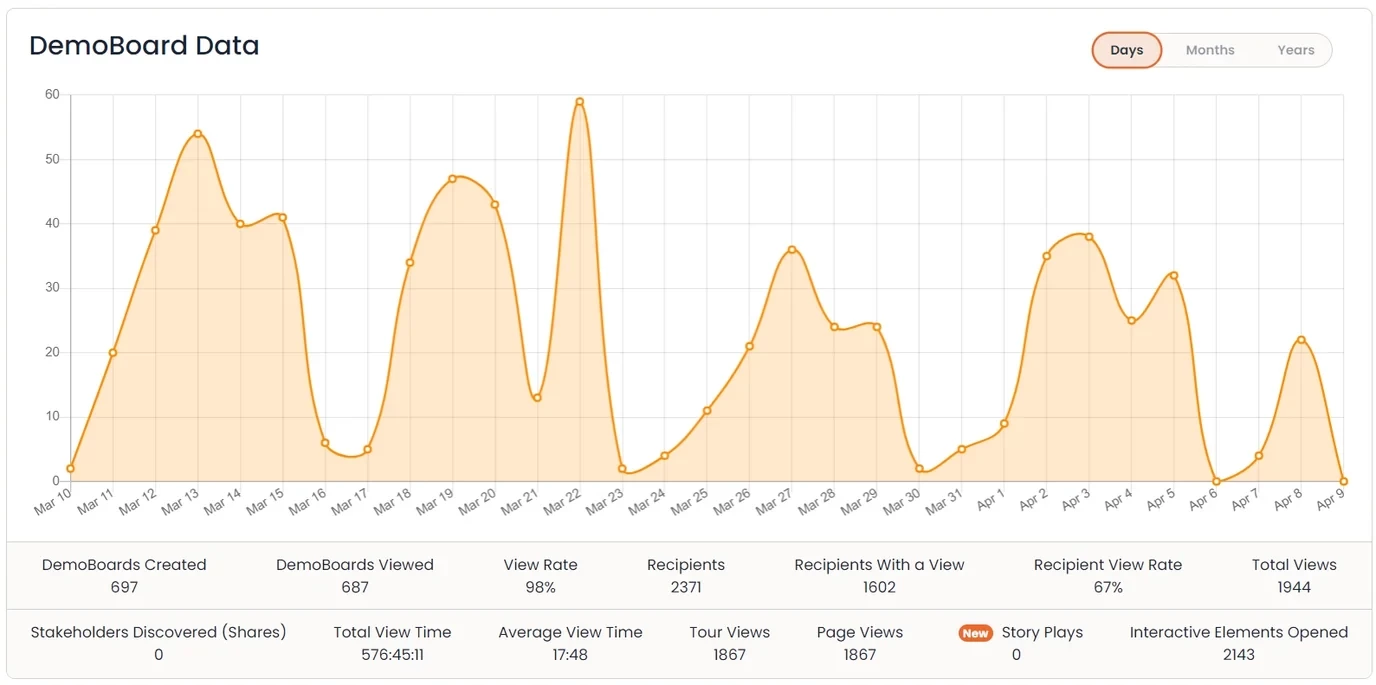
Within Consensus, you can quickly and easily filter Sales Demolytics in order to give you the most accurate view of what you are looking for.
You can filter Demolytics by Internal email domains as well as test demo. In this article, we will walk through the different filter settings as well as using filters within Demolytics
Setting Internal Emails
Internal Email Filtering allows you to remove the Demolytics for any views or DemoBoards created with your internal email domains. You can set these domains under the Settings, then selecting Global Demo Settings
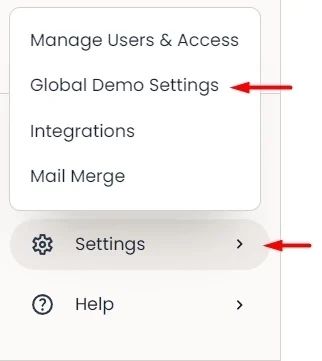
In the Global Demo Settings, scroll down the Internal Domain DemoBoard Filtering setting.
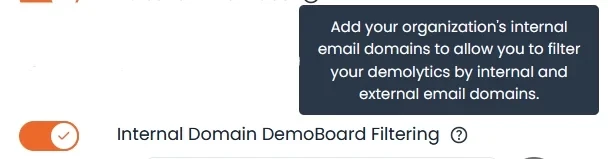
Once turned on, you can now add your internal email domains that can be filtered out of your Demolytics.
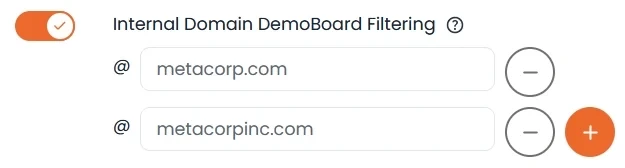
Click Save at the bottom page to apply your updated settings.
Marking a DemoBoard as a Test
DemoBoards that are marked as a Test can easily be removed from your Demolytics so you can view the most accurate true data for your teams. You can mark a DemoBoard as a test as you create it, or go back and mark it as a test afterward.
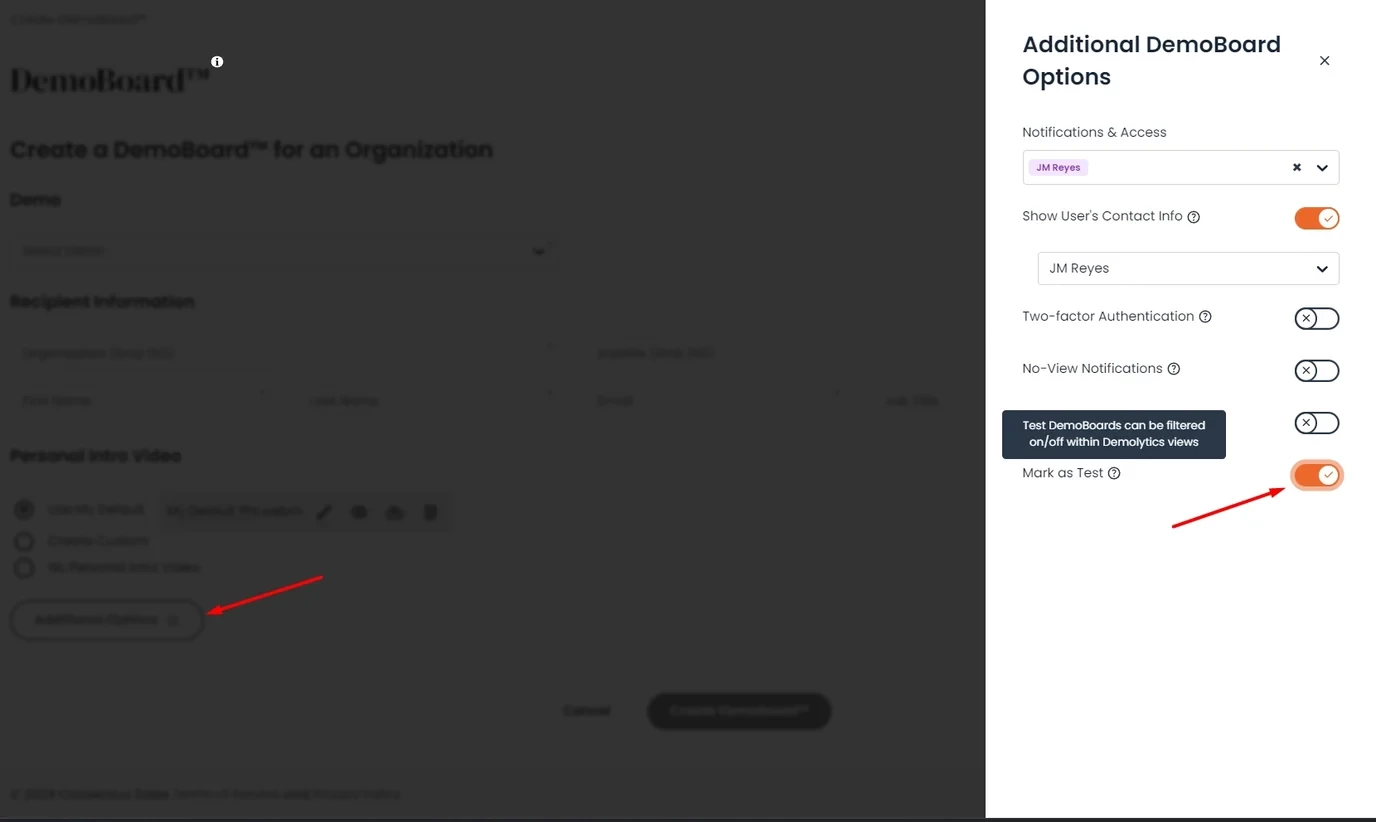
- Mark as Test While Creating a DemoBoard
- To mark a DemoBoard as a test while you are creating it, simply turn on the ‘Mark as Test’ option found within the Additional Options section
- Once you create the DemoBoard it will be set as a Test to be able to filter from your Demolytics
- Mark an Existing DemoBoard as a Test
- To go back and mark a DemoBoard you’ve already created as a test, simply click on the three dots within the Actions column of your Track DemoBoards page and select "Additional Options"
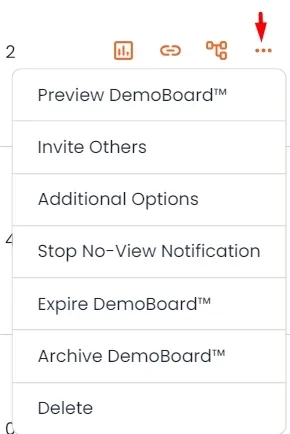
3 dots > Additional Options - This will bring you to the Addition DemoBoard Options page where you can mark the DemoBoard as a test
-

Mark as a Test toggle On - Note: Make sure to click the Save button to save this and any other changes you make to the DemoBoard
-
“Save” button
-
- To go back and mark a DemoBoard you’ve already created as a test, simply click on the three dots within the Actions column of your Track DemoBoards page and select "Additional Options"
Applying Email and Test Filters
Once you have your Internal Email Domains set up and you’ve marked the relevant DemoBoards as Tests, you can now filter your Demolytics based on these settings.
- Navigate to the Demoboard Demolytics within the Demolytics section.
- Select the Filter icon (
 ) next to the Apply button
 - Select which sets of data you want to include within your Demolytics
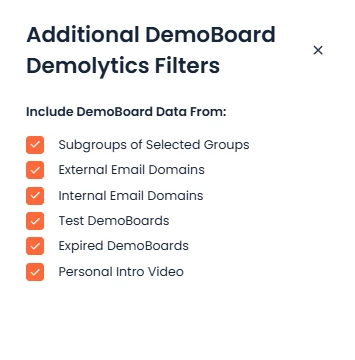
Additional Demoboard Demolytics Filters
| External Email Domains | To see data on live DemoBoards sent to prospects. |
| Internal Email Domains | To see what internal activity your team has done within DemoBoards |
| Test DemoBoards | To see what DemoBoard testing your teams have done |
Recommended Filtering: To see only actual Sales opportunity data
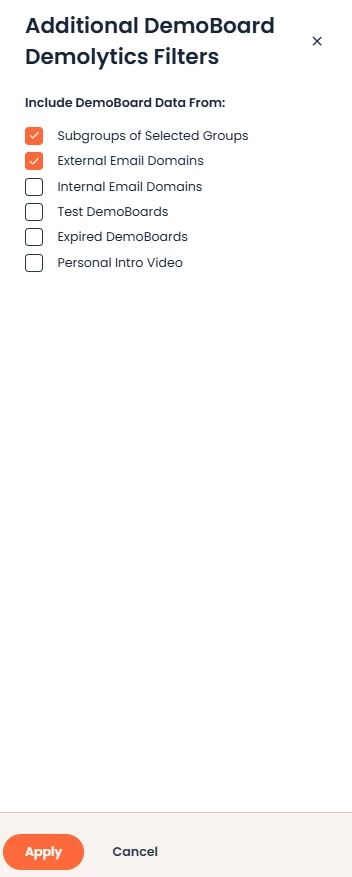
- Views from internal email domains will NOT be counted within Demolytics
- Views from external email domains will be counted within Demolytics
- If at least 1 recipient for a DemoBoard has an external email domain the DemoBoard will count within Demolytics
- If NO recipients for a DemoBoard have an external email domain the DemoBoard will NOT count within Demolytics
- PIV view time will be excluded from Demolytics
Once you’ve selected the data you wish to include, just click "Apply" and your Demolytics will now be filtered based on your selections.